Oracle | Enroll Crew Fingerprint

May 20, 2026
 8
8
- LOG IN as manager
- Click FUNCTIONS on the bottom row of the order screen.
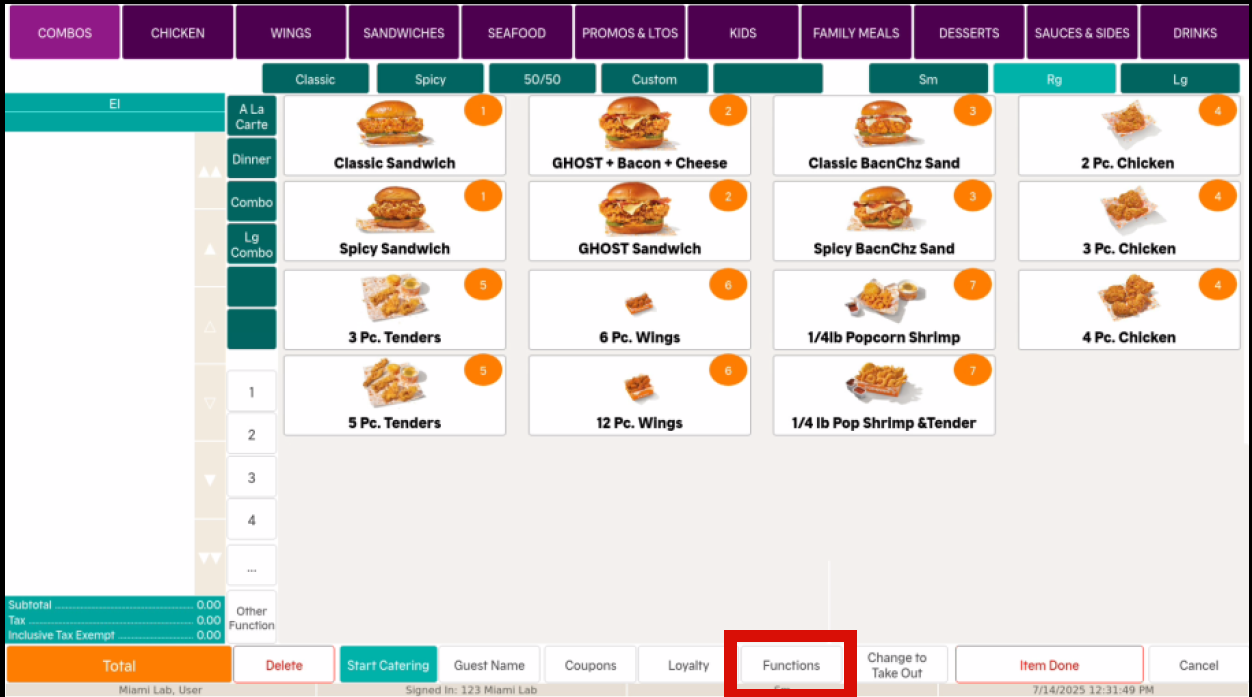
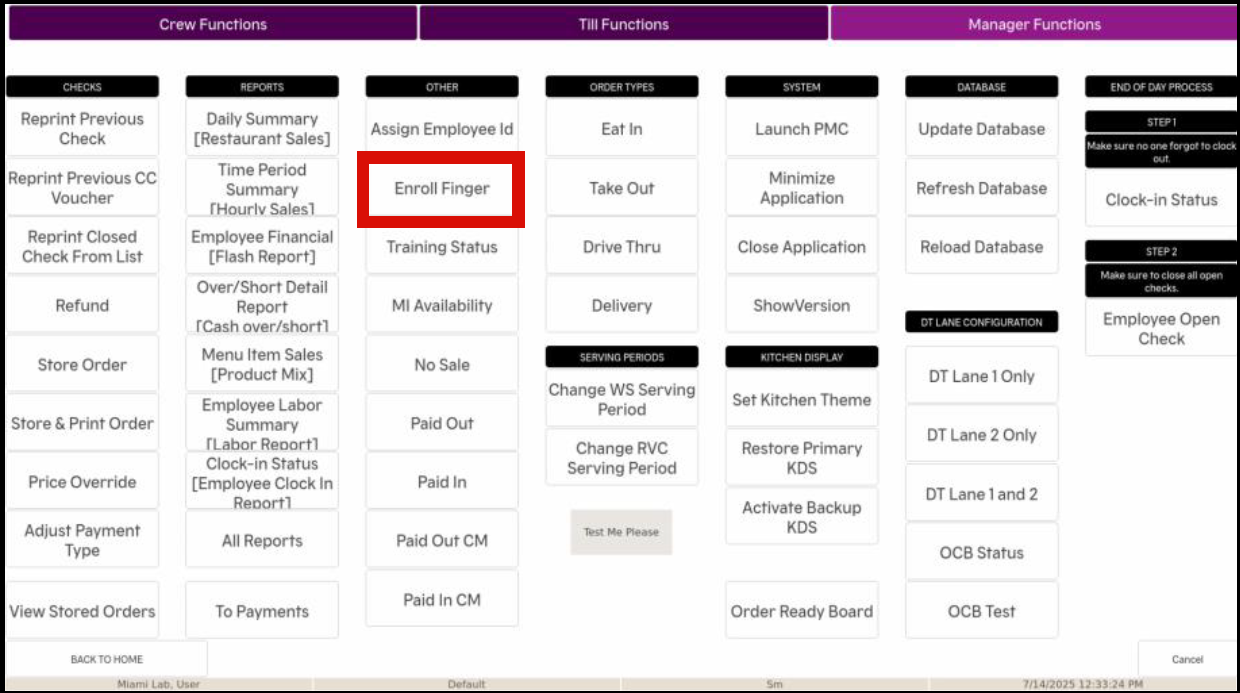
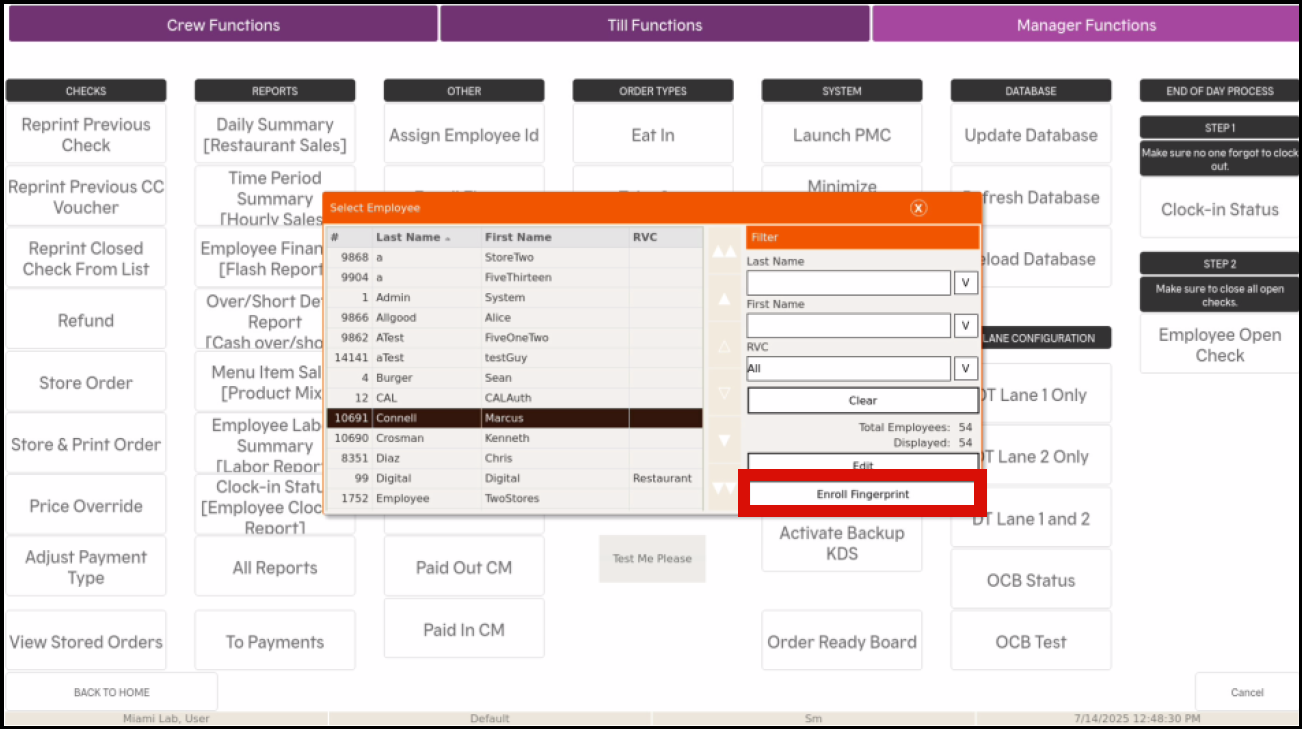
- Under the OTHER column, click ENROLL FINGER
- SEARCH FOR or SELECT EMPLOYEE NAME you wish to scan fingerprint.
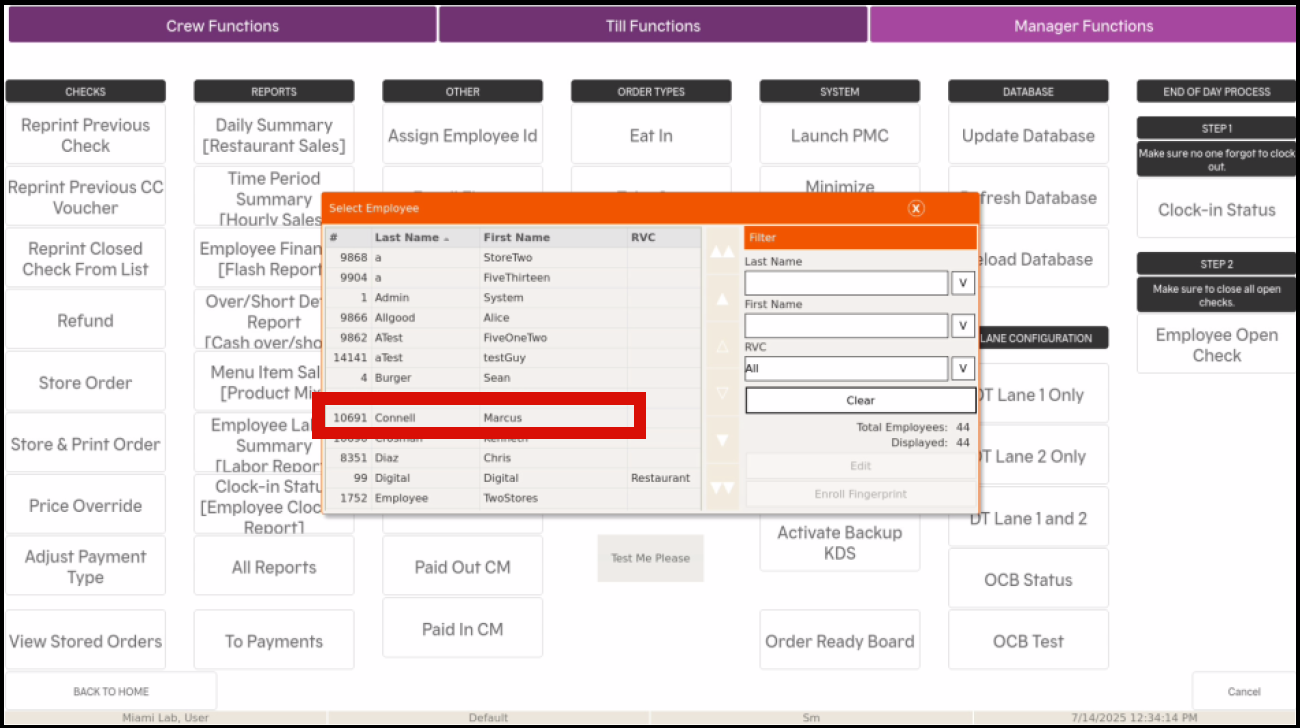
- Select ENROLL FINGERPRINT
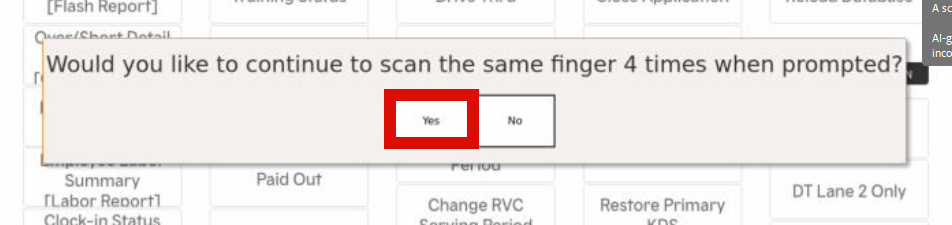
- Select YES when asked to scan the same finger 4 times.
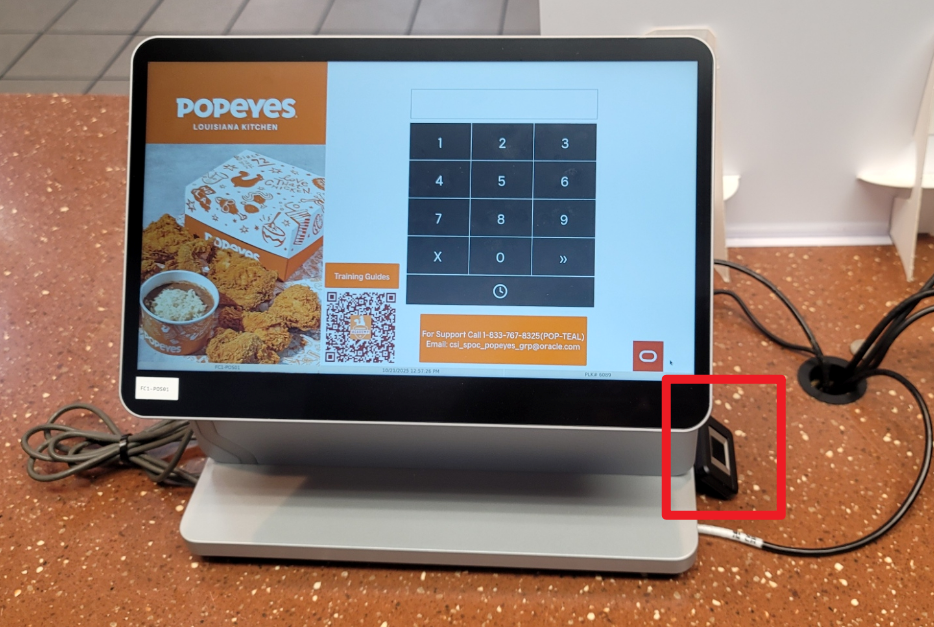
- Scan fingerprint 4 times to register
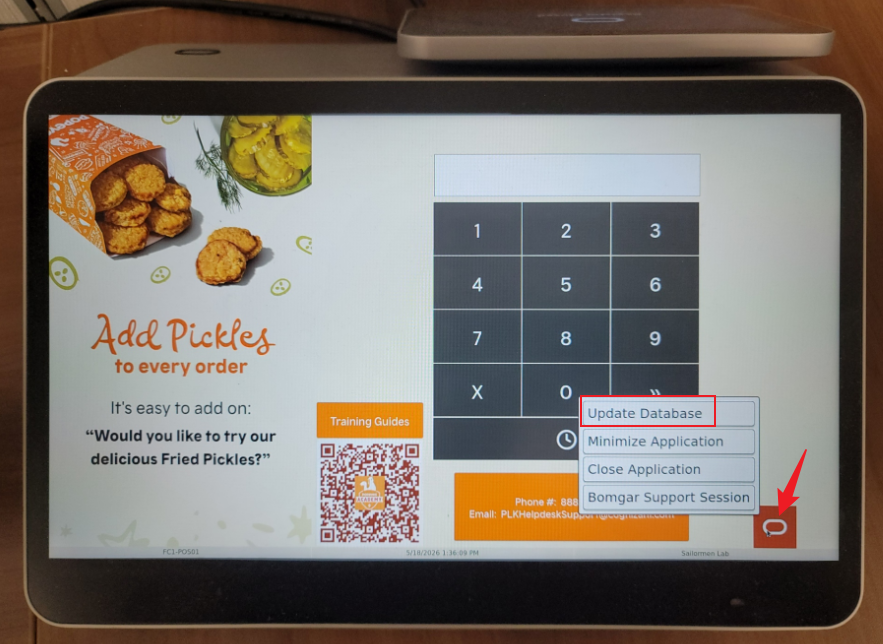
- Come back to the main screen and hit UPDATE DATABASE