PAR OPS | Login Migration to PAR ID
Last updated: Oct 30, 2026
23
views

PAR OPS has upgraded how logins work. Every user must migrate their login to a new PAR ID one time before they can get back into PAR OPS. If you see the page "The PAR OPS Login Experience is Upgrading!" when you log in, follow the steps below.
Before you start
- Your new password must be at least 10 characters and use at least 3 of these 4: lowercase, uppercase, number, special character.
- Write down your new login name. You will use it every time you log in from now on.
Step 1: Start the migration
- Go to PAR OPS: https://dc01.rmdatacentral.com/portal1246/login
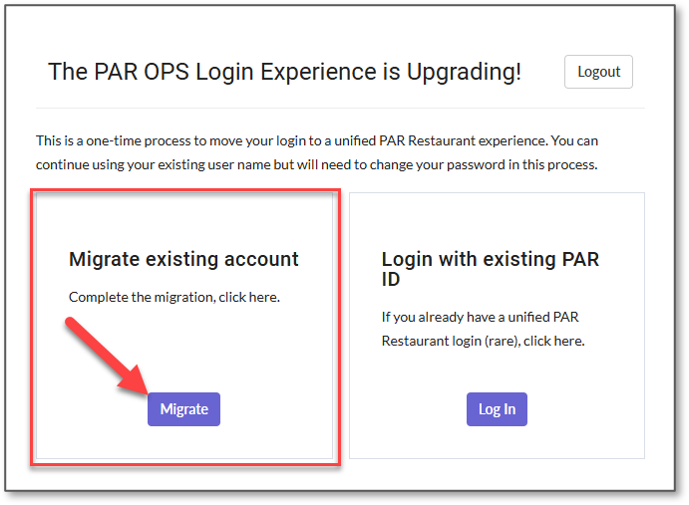
- On "The PAR OPS Login Experience is Upgrading!" page, click Migrate.
Step 2: The email page
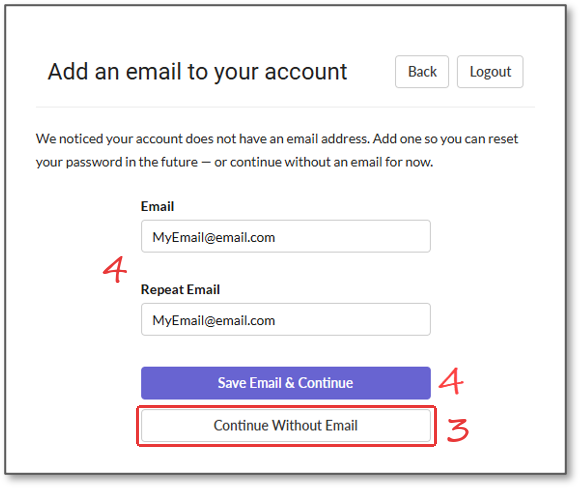
- When it asks you to add an email, click Continue Without Email.
- Note: If it does not let you continue without an email, enter the Popeyes store email (pop####@teampulserg.com) in both Email fields and click Save Email & Continue.
ARLs: If you are an Above Restaurant Leader, do not skip this page. Enter your company-assigned email (@teampulserg.com) in both Email fields and click Save Email & Continue.
Step 3: Set your login and password
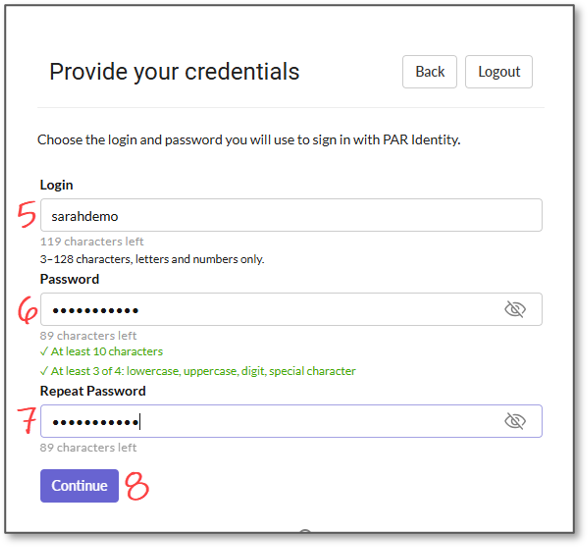
- Your new login name fills in the Login field. It no longer has "@database" at the end. This is the name you will use to log in from now on.
- Enter a password that meets the requirements on the screen. It can be your old password if it meets them.
- Enter the same password again in Repeat Password.
- Click Continue.
Step 4: Confirm and log in
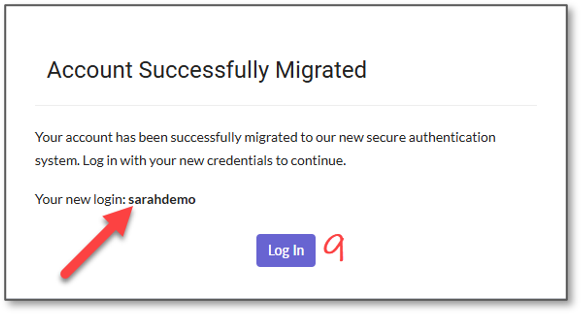
You will see Account Successfully Migrated with your new login name (red arrow). Write it down.
- Click Log In.
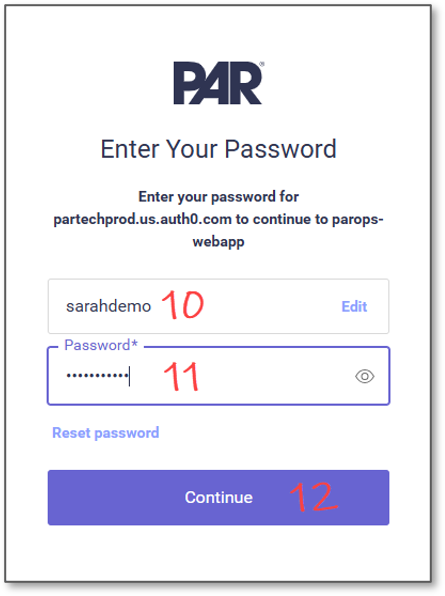
You will be taken to the new PAR login page.
- Enter your new login name from step 5.
- Enter the password you set in step 6.
- Click Continue.
Need help?
If you run into a problem with PAR OPS, contact the Popeyes Help Desk. They will create an incident number and work it with PAR.
- Phone: 1-888-985-2685 (24/7)
- Email: [email protected]