-
Inspect the cable and USB connection
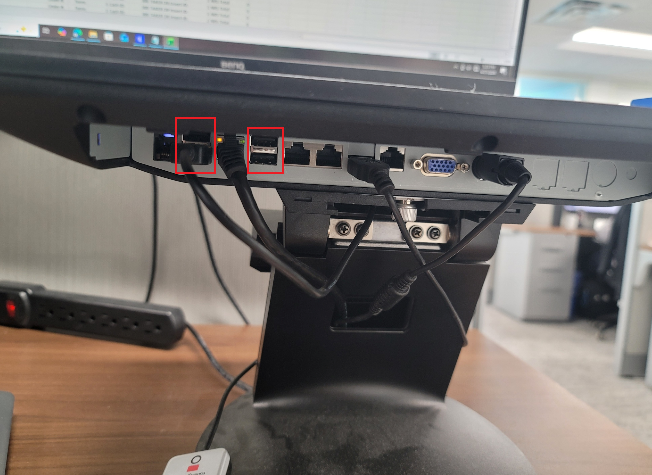
Reach under the POS terminal and confirm the scanner cable is fully seated in the USB port. A loose plug is by far the most common cause. Unplug it, blow out any debris, and plug it firmly back in.
Check if the cable shows pinching, fraying, or kinks near the scanner head. You might need to request a replacement.
-
Check the indicator LED
A healthy scanner shows a steady light (red or green). If you don't see light, please move the USB cable to a different available port and update the terminal (6 + Request).
-
Identify your scanner
MODEL A
Front Counter Scanner
Presentation-style scanner mounted at the front counter registers.
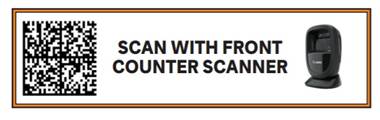
TO RE-ENABLE
Hold the printed barcode about 4–6 inches in front of the scanner's window until it beeps and update the terminal (6 + Request).
______________________________________________________________
MODEL BDrive Thru Scanner
Handheld pistol-grip scanner used at the drive-thru window.
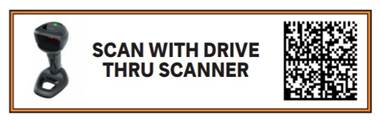
TO RE-ENABLE
Pull the trigger and aim at the printed barcode until you hear the confirmation beep and update the terminal (6 + Request).
-
Test with a known-good barcode
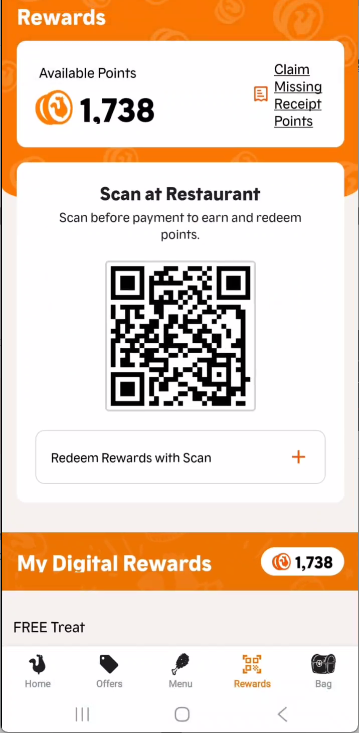
Test the scanner by scanning a reward QR Code in the Popeyes App.
-
Contact Support
If you have followed all these steps or if the scanner shows a red flashing light, or unlit LED, this indicates a power, pairing, or hardware problem. Open a case sending an email to [email protected]